
How to Create a Color Palette in Photoshop

Understanding Color Palettes
When it comes to designing, one of the most crucial aspects is creating a color palette that complements your project. A well-crafted color palette can elevate your design and make it more visually appealing. In this article, we will guide you through the process of creating a color palette in Photoshop. Whether you are a beginner or an experienced designer, this tutorial will help you understand the basics of color palettes and how to create one in Photoshop.
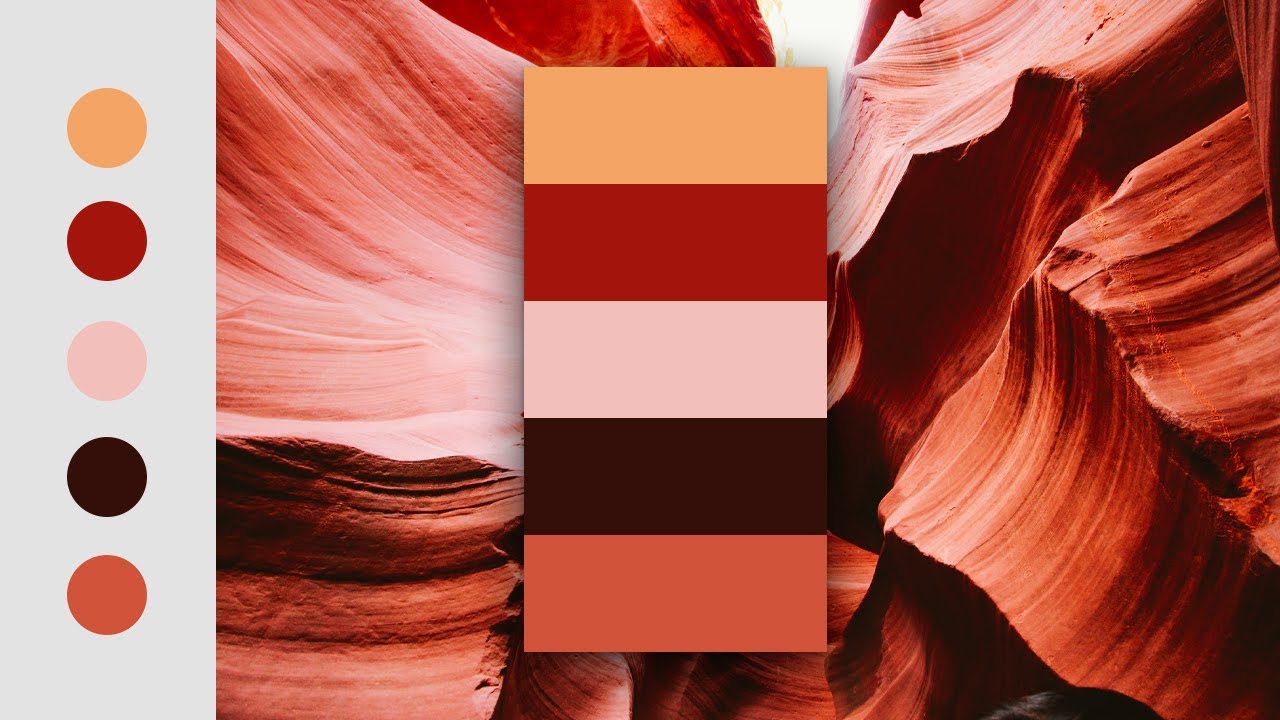
To start creating a color palette, you need to understand the basics of color theory. Color theory is a set of principles used to create harmonious color combinations. It involves understanding the color wheel, primary and secondary colors, and how to mix colors to create a palette. You can use online color palette generators or consult with a color wheel to get inspiration for your palette.
Creating a Color Palette in Photoshop
A color palette is a collection of colors used in a design. It can range from a few colors to a wide range of colors. When creating a color palette, it's essential to consider the mood, theme, and target audience of your design. You can use Photoshop's built-in color palette tools or create your own custom palette from scratch. Photoshop offers a variety of tools, such as the Color Picker and the Swatches panel, to help you create and manage your color palette.
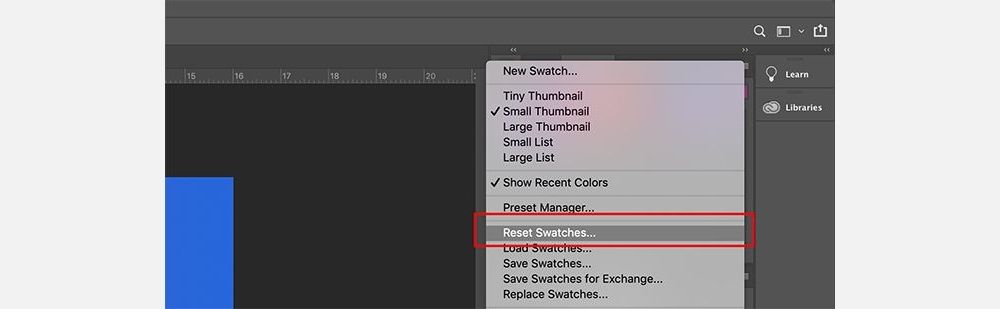
To create a color palette in Photoshop, start by opening the Swatches panel. You can do this by going to Window > Swatches. Then, click on the Create New Swatch button and select a color using the Color Picker. You can add multiple colors to your palette by repeating this process. Once you have created your color palette, you can use it to design your project. You can also save your palette for future use by clicking on the Save Swatches button.