
How to Print Note Cards in Word: A Step-by-Step Guide
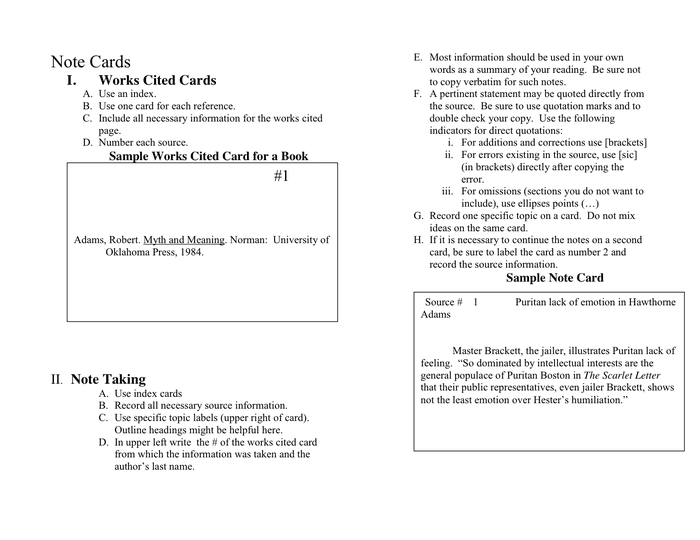



Creating Note Cards in Word
Printing note cards in Word is a great way to create personalized and professional-looking cards for any occasion. Whether you're looking to create birthday cards, thank you cards, or business cards, Word has the tools you need to get the job done. With its user-friendly interface and wide range of templates and design options, you can create note cards that reflect your personal style and meet your specific needs.
To get started, open Word and select the 'File' menu. From there, choose 'New' and then select 'Note Card' from the list of available templates. If you don't see a note card template, you can also search for 'note card' in the search bar and browse through the available options. Once you've selected a template, you can customize it to fit your needs by adding your own text, images, and design elements.
Printing Your Note Cards
When creating note cards in Word, it's essential to consider the layout and design of your card. You'll want to choose a font and color scheme that reflects the occasion and your personal style. You can also add images, borders, and other design elements to make your card more visually appealing. Word offers a wide range of tools and features to help you customize your note card, including text boxes, shapes, and clip art.
Once you've created your note card, it's time to print it out. To do this, select the 'File' menu and choose 'Print'. From there, select your printer and choose the paper size and type that you want to use. You can also adjust the print quality and other settings to ensure that your note card looks its best. With Word, you can print note cards on a variety of paper types, including cardstock, glossy paper, and more. By following these simple steps, you can create and print professional-looking note cards in Word with ease.